スマートフォンで開いた書類の二次元バーコードを読み取る方法

Sorry, this entry is only available in 日本語. For the sake of viewer convenience, the content is shown below in the alternative language. You may click the link to switch the active language.

スマートフォンで「オーナーアプリへ簡単ログイン WealthParkログインID・初期パスワードのご案内」を開いている方は下記の方法でSTEP1の二次元バーコードの読み取り、アプリのダウンロードをしてください。
PDFファイルを開いたまま、二次元バーコードを読み取りたいのに別の端末がない…お手持ちのスマホ一つで完結させる方法をご紹介します。
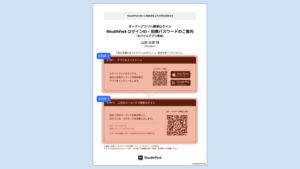
iOS (iPhone/iPad) の場合

[1]二次元バーコードが表示されたPDFのスクリーンショットを撮ります。

[2]「写真」アプリを開き、今撮ったスクリーンショットを選択します。

[3]二次元バーコードの部分をタップすると、リンクが表示されます。

※うまく操作できない場合は、画面右下に表示されるテキスト認識表示アイコン(四角の中に三本線のアイコン)をタップしてから、二次元バーコード部分をタップしてください。

Android の場合

[1]二次元バーコードが表示されたPDFのスクリーンショットを撮ります。

[2]「Googleフォト」アプリを開き、撮ったスクリーンショットを選択します。

[3]画面下の「レンズ」アイコンをタップします。

[4]QRコードが認識され、リンクが表示されます。

何かご不明な点がございましたら「お問い合わせ」ください


お問い合わせはこちら
またはモバイルアプリ内でもお問い合わせいただけます(アプリの右上にある歯車マークをタップ>お問い合わせ)
引き続き、より良いサービスを目指してまいります。不具合やサービス利用上の疑問はお気軽にお尋ねください。よろしくお願いいたします。

Inquiry about the application


    PCSmartphoneTablet

    EmailPhoneEither

    Cannot loginAbout how to operateFeature improvements/requestOther


    When inquiring about errors or malfunctions, providing the error message or details of the malfunction may help us resolve the issue more smoothly.Error Message Example:
    ID: W001234 (taro_wealth)
    The owner information specified by your account is not registered in the owner app.

    Your information will be used for checking and answering for the inquiry. Please check our privacy policy and check the checkbox on the right if you consent the
    handling.

    Please agree to the terms of use / privacy policy.